Easy_Ikiiki_Asset.prefab을 Hierarchy의 아바타 안에 넣어요. 아바타 안이면 어디든 괜찮아요.
인스펙터에서 부위를 고르고 업로드해요. Setup Outfit은 필요 없어요.
팁오른쪽 위 ?를 누르면 항목마다 설명이 나와요. 언어는 오른쪽 위 메뉴에서 日本語 / 한국어 / English로 바꿀 수 있어요.
부위
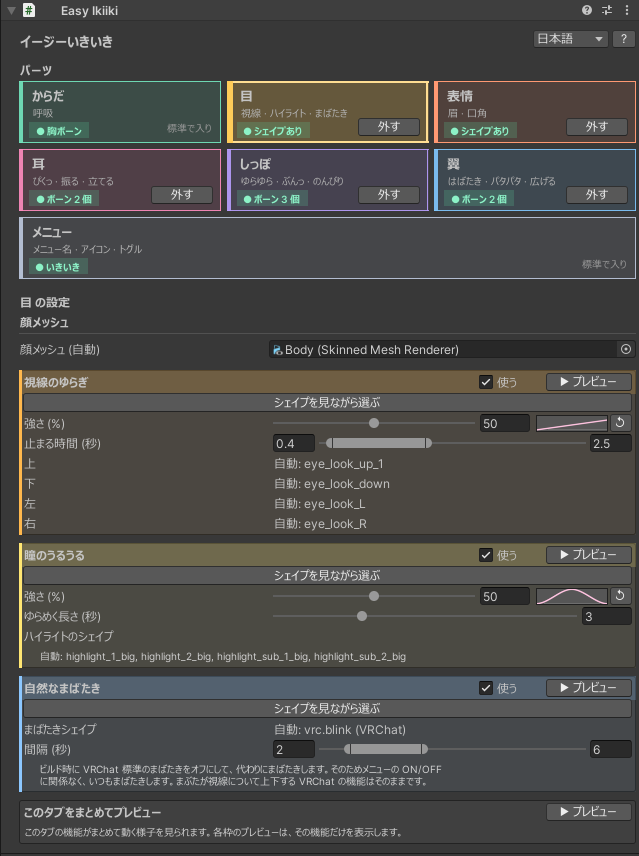
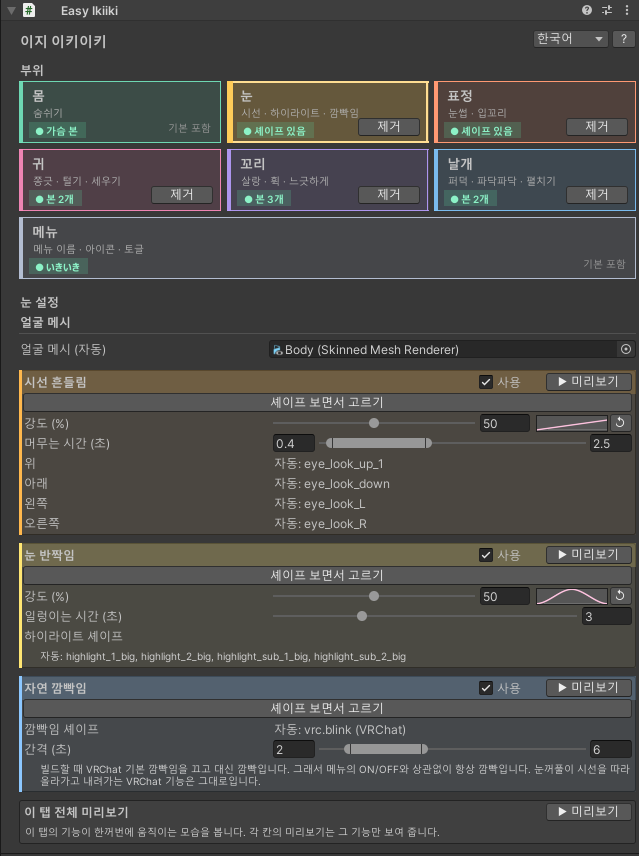
인스펙터 위쪽에 부위 카드가 있어요. 몸(숨쉬기)과 메뉴는 기본으로 들어 있고, 다른 부위는 카드의 추가로 넣고 제거로 빼요. 카드를 누르면 그 아래에 해당 부위의 설정이 나와요.
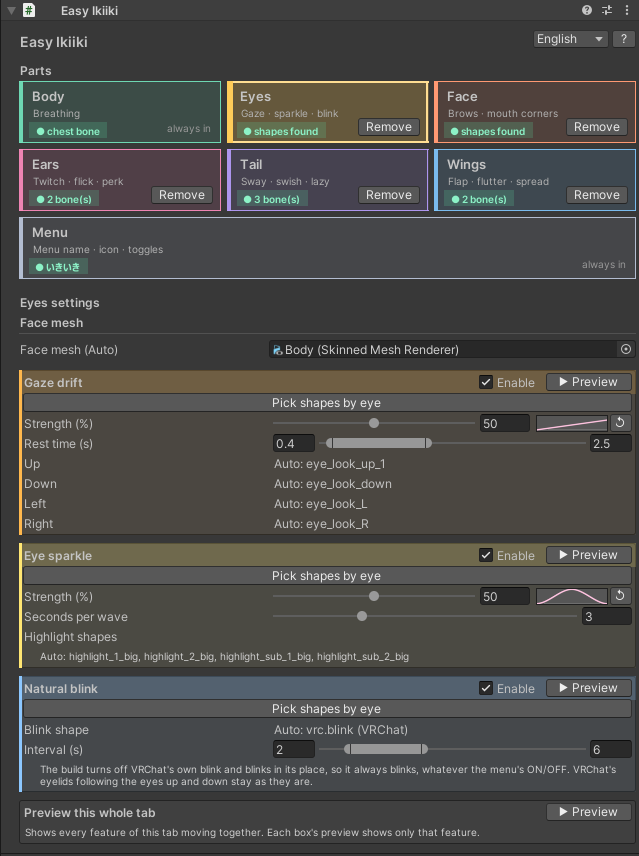
부위 카드와 "눈" 설정. 부위마다 색이 달라요.
카드 왼쪽 아래에는 아바타에서 찾은 것(본 2개, 셰이프 있음 등)이 표시돼요. 찾지 못한 부위도 추가할 수 있고, 나중에 본 인식하기나 본 보면서 고르기로 지정하면 돼요.
몸 (숨쉬기)
가슴의 앞·위·옆이 부드럽게 부풀고 등 쪽은 움직이지 않아요. Modular Avatar로 입힌 의상도 가슴에 맞춰 움직여요. Humanoid 본을 돌리지 않아서 게임 속 IK에서도 팔다리가 어긋나지 않아요.
강도 (%): 숨의 깊이. 오른쪽 그래프로 숨 한 번의 모양(들숨·날숨)을 바꿀 수 있고, ↺로 되돌려요.
한 번 숨쉬는 시간 (초)와 속도 흔들림 (%): 숨 쉬는 속도와 그 흔들림.
기본 대기 움직임 끄기 (기본 켜짐): Additive 레이어를 따로 설정하지 않은 아바타는 게임 안에서 VRChat 기본 대기 애니메이션 때문에 팔과 가슴이 흔들려요 (Gesture Manager에서는 안 보여요). 켜 두면 이 흔들림을 없애고 숨쉬기만 남겨요.
눈
얼굴 메시는 자동으로 찾아요(얼굴 메시 (자동)). 다른 메시를 쓸 때만 지정해 주세요.
시선 흔들림
가끔 시선이 움직였다가 잠깐 머물고 돌아와요. 머무는 시간 (초)으로 머무는 시간의 범위를 정해요. 위·아래·왼쪽·오른쪽 셰이프는 자동으로 찾고, 다르면 셰이프 보면서 고르기로 다시 고를 수 있어요.
눈 반짝임
눈 하이라이트가 천천히 커지거나 반짝여요.
자연 깜빡임
빌드할 때 VRChat 기본 깜빡임을 끄고, 대신 랜덤한 깜빡임(보통·두 번·천천히 등)을 해요. 눈이 위아래를 볼 때 눈꺼풀이 따라오는 VRChat 기능은 그대로예요.
자체 깜빡임이 있는 아바타아바타가 자체 애니메이션으로 깜빡이면 이지 이키이키만 / 아바타 것만 / 둘 다 중에서 고르는 상자가 나와요. 나중에 "자연 깜빡임" 아래에서 언제든 바꿀 수 있어요.
표정
눈썹이 까딱 올라가거나 곤란한 모양이 되고, 입꼬리가 살짝 올라가요. 움직일 셰이프는 자동으로 찾고, 셰이프마다 움직일 셰이프 (최대 %) 슬라이더로 세기를 바꿀 수 있어요. 말하는 동안에는 입이 움직이지 않아요.
표정 중에는 쉬어요제스처나 FaceEmo 등으로 아바타 표정이 나오는 동안에는 시선·깜빡임·눈썹·입 움직임이 자동으로 멈추고, 표정이 돌아오면 다시 움직여요. 눈 감은 표정에서 눈꺼풀이 두 번 감기는 일도 없어요.
귀·꼬리·날개
귀는 쫑긋·털기·세우기, 꼬리는 살랑·휙·느긋하게, 날개는 퍼덕·파닥파닥·펼치기를 랜덤으로 섞어요. 왼쪽과 오른쪽 귀는 각자 다른 타이밍에 움직여요.
본은 이름(ear·耳·tail·しっぽ·wing·羽 등)으로 자동으로 찾아요. 의상이나 헤어로 나중에 붙인 귀·꼬리도 Modular Avatar로 붙는 위치를 생각해서 찾아요.
못 찾거나 틀리면 본 인식하기(다시 찾아서 정하기)나 본 보면서 고르기를 써 주세요.
아바타 기본 귀·꼬리·날개 움직임 끄기 (기본 켜짐): 아바타 자체 애니메이션이 귀나 꼬리를 움직이면, 그 움직임을 빼서 겹치지 않게 해요.
PhysBone이 있으면 빌드할 때 "Is Animated"를 자동으로 켜서, 움직임 위에 흔들림이 자연스럽게 더해져요.
보면서 고르기
본 보면서 고르기
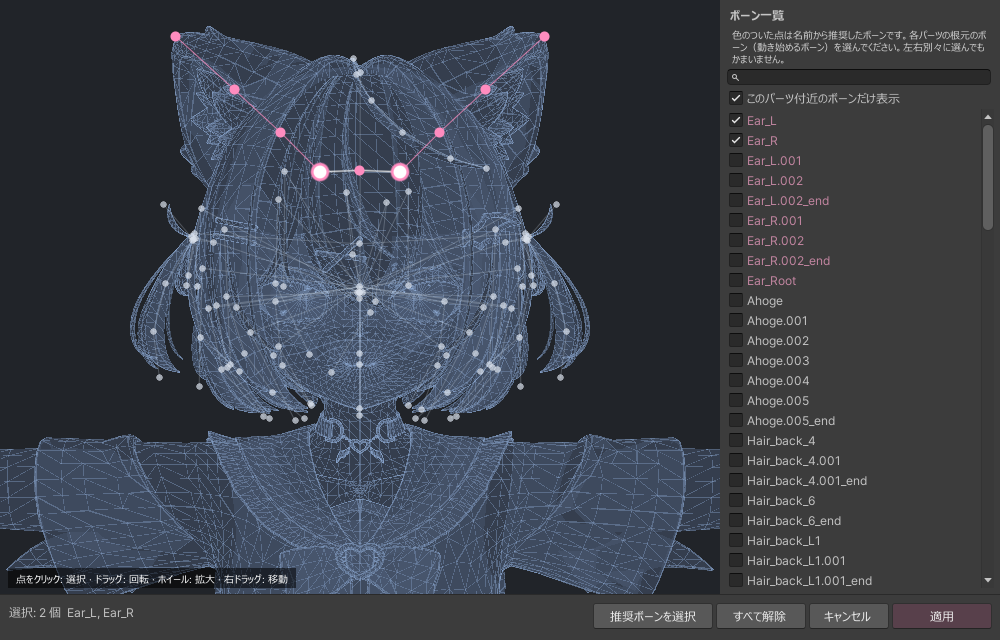
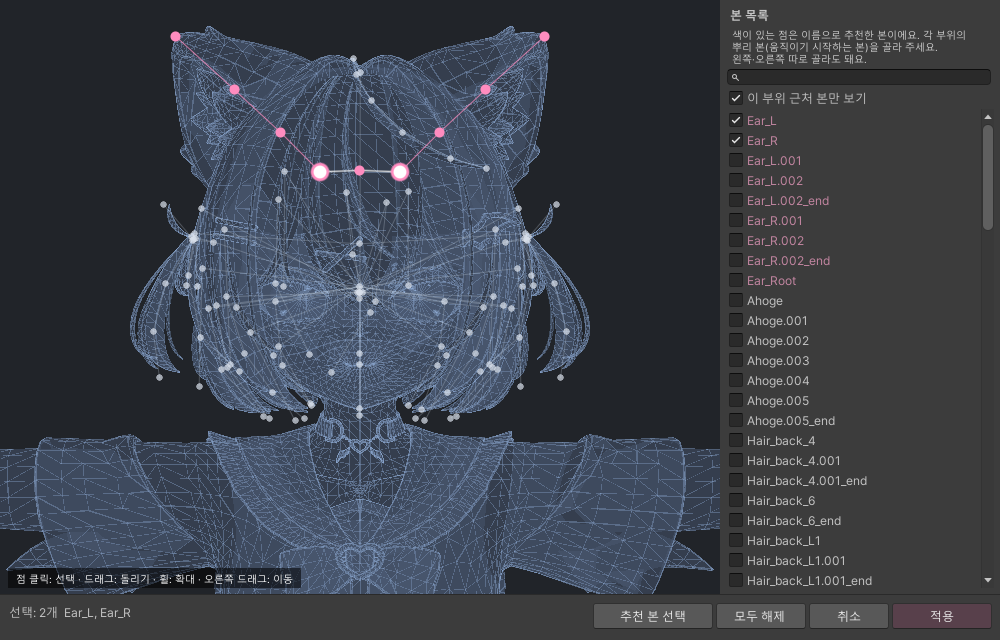
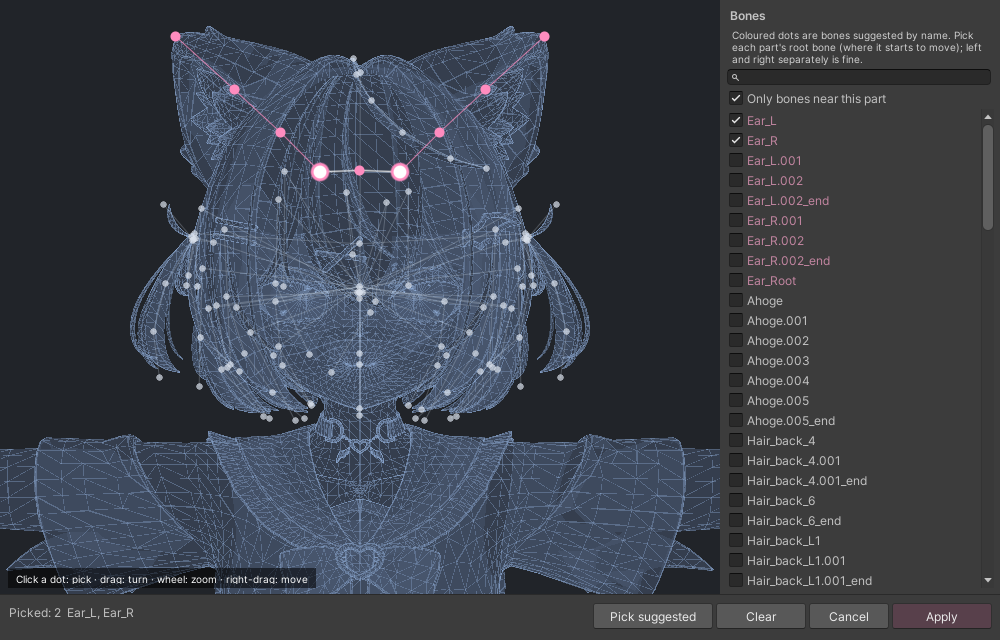
아바타 와이어프레임 위에 본이 점으로 표시돼요. 추천 본은 부위 색, 고른 본은 흰색이고 클릭으로 고르거나 뺄 수 있어요. 오른쪽 목록에서 이름으로 검색할 수도 있어요. 적용을 누르면 정해져요.
셰이프 보면서 고르기
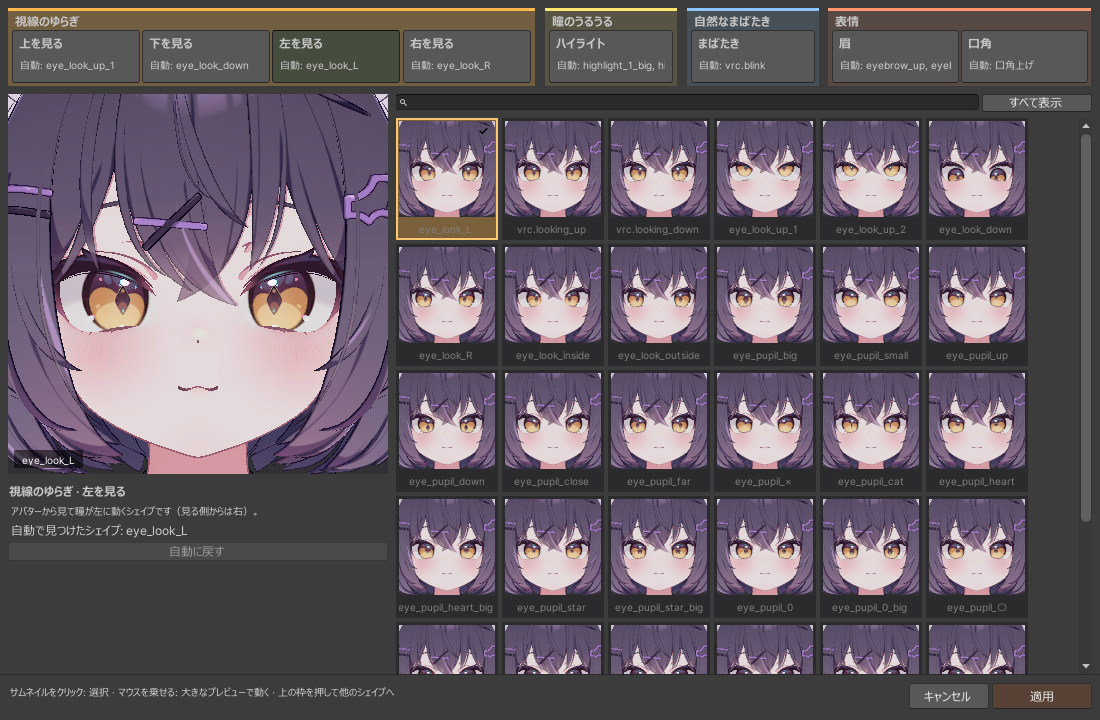
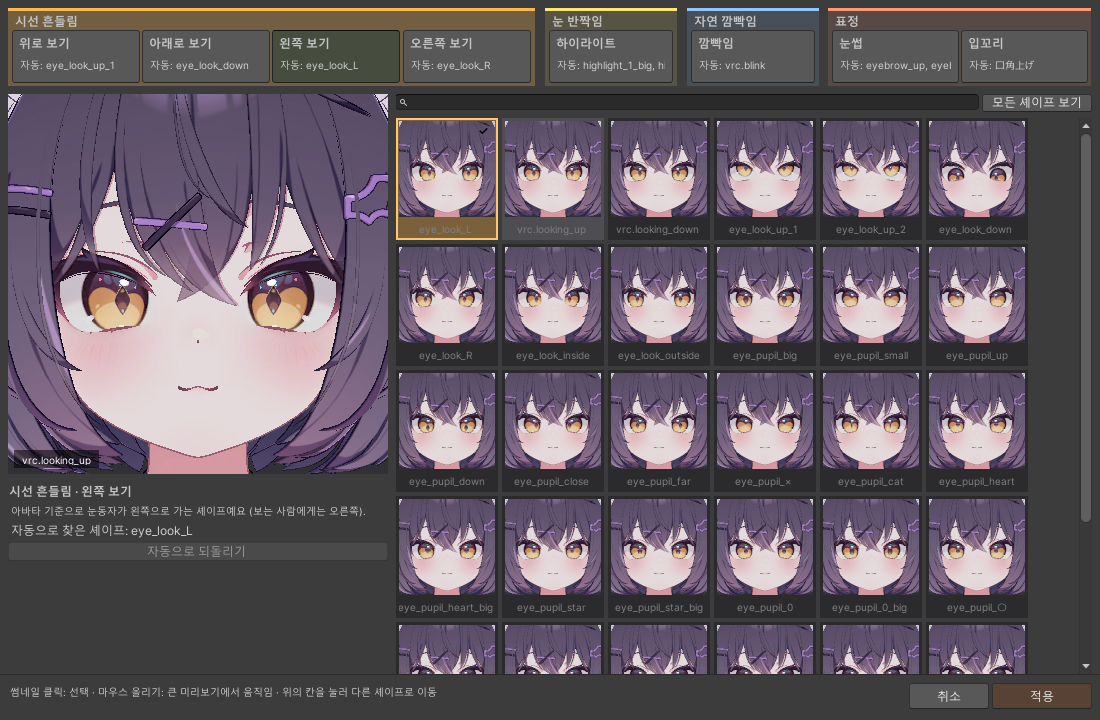
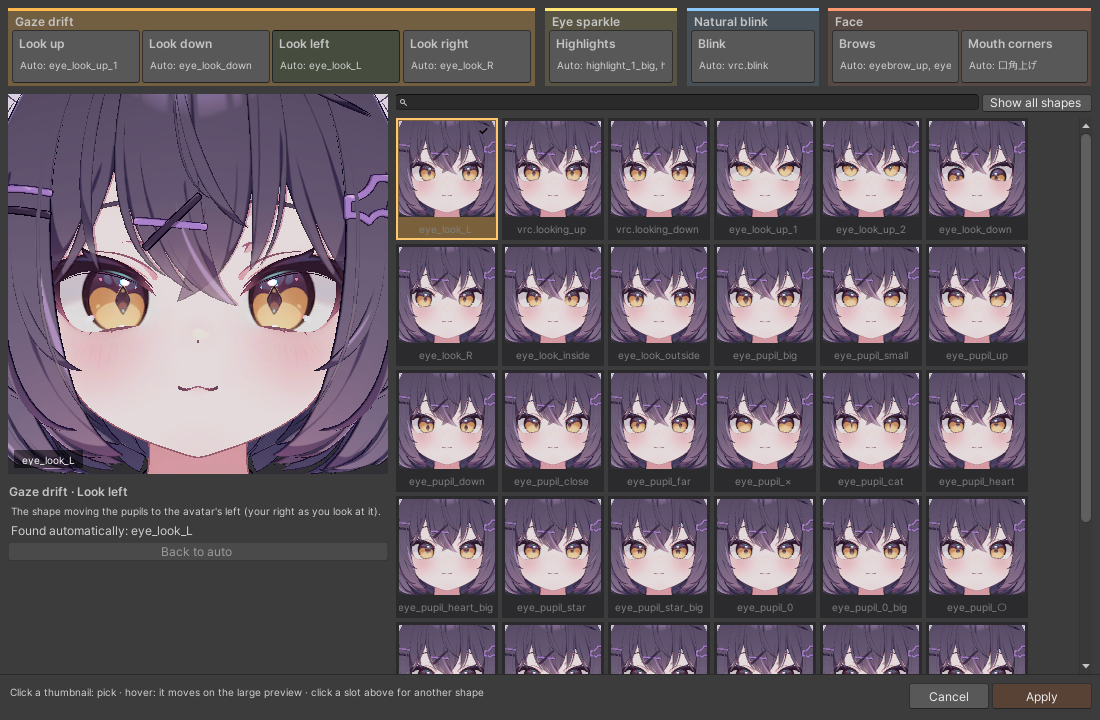
위쪽 칸(시선 흔들림·눈 반짝임·자연 깜빡임·표정)을 고르고 얼굴 썸네일에서 골라요. 마우스를 올리면 왼쪽 큰 미리보기에서 그 셰이프가 움직여요. 모든 셰이프 보기로 후보가 아닌 셰이프도 볼 수 있어요. 적용을 누르면 모든 칸이 한 번에 저장되고, 고르지 않은 칸은 자동 그대로예요.
메뉴
Expression 메뉴에 いきいき 서브메뉴가 생겨요(이름은 메뉴 이름에서 변경). 안에는 전체 ON/OFF와 부위별 ON/OFF(숨쉬기·귀·꼬리·날개·눈·표정)가 들어가요. 선택은 저장·동기화돼요.
Add Modular Avatar to the project with VCC (VRChat Creator Companion); NDMF comes with it.
Drag the unitypackage into Unity to import it. You get Assets/Eukkbi_Soft/Easy_Ikiiki_Asset.
Put Easy_Ikiiki_Asset.prefab inside your avatar in the Hierarchy. Anywhere inside the avatar works.
Choose parts in the inspector and upload. No Setup Outfit needed.
TipPress ? at the top right for a note on every setting. The menu next to it switches the inspector between 日本語 / 한국어 / English.
Parts
The inspector starts with a row of part cards. Body (breathing) and Menu are always in; add other parts with Add on their card and take them out with Remove. Clicking a card shows that part's settings below.
Part cards and the Eyes settings. Each part has its own colour.
The bottom left of each card shows what was found on the avatar (2 bone(s), shapes found and so on). Parts that weren't found can still be added; set them later with Detect bones or Pick by eye.
Body (breathing)
The front, top and sides of the chest rise softly while the back stays still, and outfits added with Modular Avatar move along. No humanoid bone is turned, so in-game IK never pulls the arms or legs out of place.
Strength (%): how deep each breath is. The graph beside it shapes one breath (in and out); ↺ resets it.
Seconds per breath and Pace variation (%): the pace and how much it wanders.
Turn off the default idle sway (on by default): avatars without their own Additive layer get VRChat's default idle in game, which sways the arms and chest (Gesture Manager doesn't show it). This stops it so only the breathing remains.
Eyes
The face mesh is found automatically (Face mesh (Auto)); set it only to use another mesh.
Gaze drift
Now and then the eyes glance somewhere, rest a moment and come back. Rest time (s) sets how long they rest. The up, down, left and right shapes are found for you; if they're wrong, pick them again with Pick shapes by eye.
Eye sparkle
The eye highlights slowly grow and shimmer.
Natural blink
The build turns off VRChat's own blink and blinks at random in its place (single, double, slow and so on). VRChat's eyelids following the eyes up and down stay as they are.
Avatars that blink by themselvesIf the avatar's own animation blinks, a box asks you to choose Easy Ikiiki only, The avatar's only or Both. You can change it any time under Natural blink.
Face
The brows lift or turn troubled now and then, and the mouth corners rise a little. The shapes are found for you, and each has a Shapes to move (max %) slider. The mouth waits while you talk.
Rests during expressionsWhile your avatar shows an expression (gestures, FaceEmo and so on), gaze, blinks, brows and mouth pause, and resume when it ends. Eyelids never close twice over a closed-eye expression.
Ears, tail, wings
Ears twitch, flick and perk up; the tail sways, swishes and wags lazily; wings flap, flutter and spread, all mixed at random. Left and right ears move on their own timing.
Bones are found by name (ear, 耳, tail, しっぽ, wing, 羽 and so on), including ears and tails added later with outfits or hair, where Modular Avatar will put them.
If they're missing or wrong, use Detect bones (search again and keep the result) or Pick by eye.
Turn off the avatar's own ear, tail and wing motion (on by default): if the avatar's own animations move its ears or tail, that motion is taken off so the two don't stack.
With PhysBones on them, the build turns on "Is Animated", so the physics adds natural follow-through.
Pick by eye
Pick bones by eye
Bones show as dots on a wireframe of your avatar: suggested ones in the part's colour, picked ones in white. Click to pick or drop a bone, or search by name in the list. Apply keeps the choice.
Pick shapes by eye
Choose a slot at the top (gaze drift, eye sparkle, natural blink, face) and pick from face thumbnails. Hover one and it moves on the large preview. Show all shapes lists shapes beyond the suggestions. Apply saves every slot at once; slots you left alone stay automatic.
Menu
The Expression menu gets an いきいき submenu (rename it with Menu name) with an overall ON/OFF and one toggle per part (breathing, ears, tail, wings, eyes, face). Choices are saved and synced.
ON/OFFBreathEarsTailWingsEyesFace
Menu icon: left empty, the bundled icon is used.
On by default: whether it starts on after upload.
Per-feature toggles: off leaves only the overall ON/OFF, using 1 synced bit.
Synced parameters: shows the bits used (up to 7).
How it works
All random: the wait before each move, its size, the gaze direction and the kind of blink are decided on the spot every time, and differently on each viewer's screen.
Non-destructive: at upload, NDMF builds the FX layers and removes the settings component. Your avatar's own files are never changed; delete the prefab and everything is back.
Gets along with face gimmicks: the face layers go last in FX, so FaceEmo and similar don't cover them.
Works on avatars with Write Defaults ON or OFF.
FAQ
The ears, tail or wings aren't found
Open Pick by eye in that part's settings, click the root bone and press Apply. If it still doesn't move, send us details with the diagnostics tool below.
The gaze goes the wrong way or makes another face
Pick the right up, down, left and right shapes again with Pick shapes by eye under Eyes. Left and right are the avatar's.
It blinks twice
The avatar's own blink overlaps. Choose Easy Ikiiki only or The avatar's only under Natural blink.
I use face tracking
Turn "Eyes" and "Face" off in the in-game menu while tracking, or leave those parts out if you always track. If VRChat's own eye tracking moves your eyelids, untick Enable on Natural blink.
It looks fine in Unity but moves differently in game
VRChat's default idle plays only in game. Turn on Turn off the default idle sway.
How do I remove it?
Delete Easy_Ikiiki_Asset from your avatar. Your avatar's own files were never changed.
If something doesn't workSend details with the free Eukkbi_Soft Avatar Diagnostics tool, or the text from Copy diagnostics in the Menu part, and we'll fit it to your avatar.